SnapType EDU: How to Free Up Licenses in Google Admin
Google Workspace does not show a list of assigned seats in the Admin console, so there is no direct way to view or remove individual users. This guide walks you through the workaround: temporarily disabling licensing for your Organizational Units (OUs) to reset your entire license pool.
Plan ahead. The reset takes at least 24 hours. Do this over a weekend so students have access again by Monday.
How It Works
Google manages license allocations through a daily batch job. Turning licensing OFF for an OU triggers that job to unassign all users in that OU and return those seats to your available pool. Turning licensing back ON allows students to automatically claim a seat the next time they open the app.
Step-by-Step Instructions
1. Identify your OUs: In the Google Admin console, note every Organizational Unit that currently has SnapType licensing turned ON. You will need this list to re-enable them after the reset.
2. Turn licensing OFF: Go to Devices > Chrome > Apps & extensions, then select the App licensing tab.
For each OU you want to reset:
- Select the OU from the left-hand menu
- Find SnapType in the app list and open its settings
- Switch App licensing to OFF
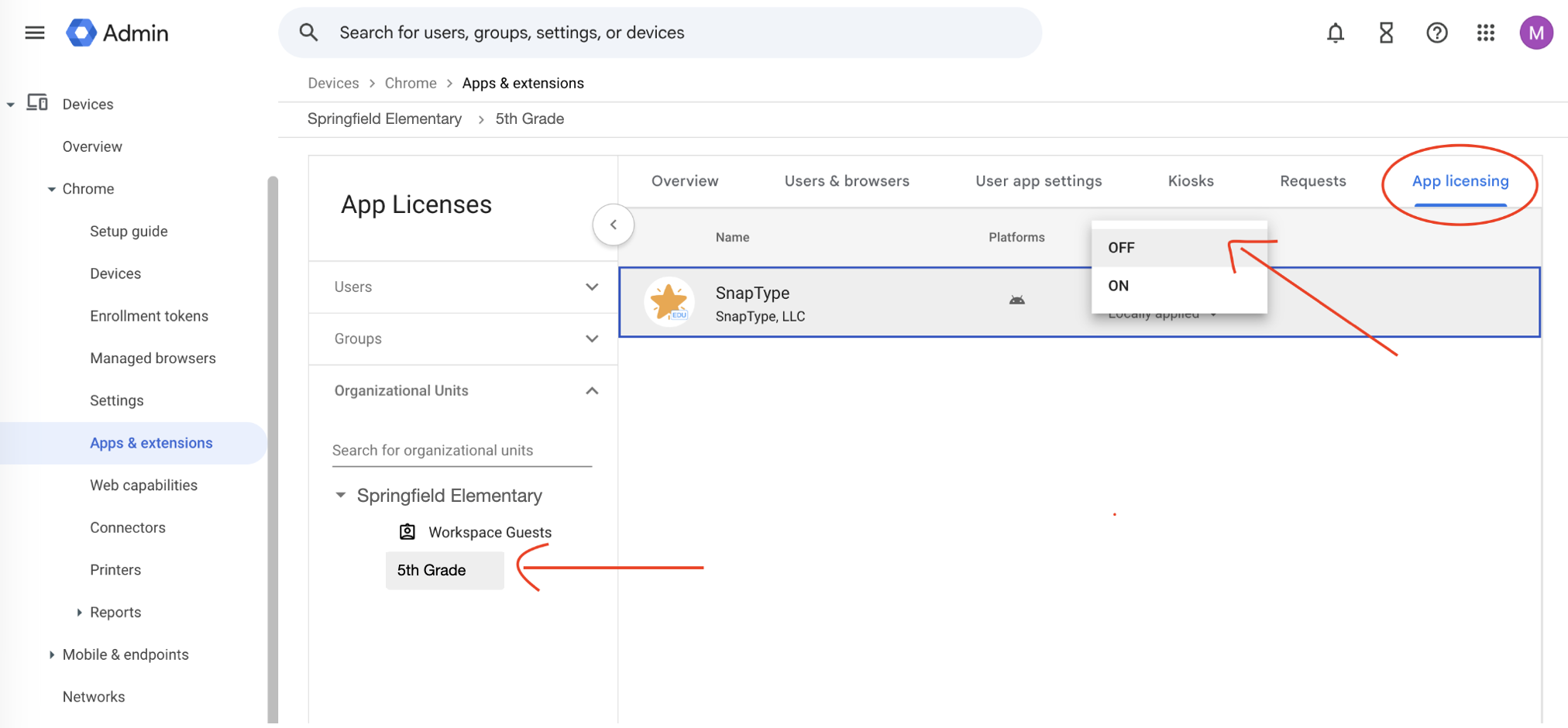
3. Wait 24 hours: Google's batch job runs once daily. The reset will not take effect until it processes. Do not skip this step.
4. Turn licensing back ON: Return to the App licensing section and switch each OU back to ON. Students will automatically receive a new license the next time they open the app.
Easiest Option: Reset Everything at Once
Turn OFF all OUs, wait 24 hours, then turn them all back ON. This resets your total allocated count to 0 and is the simplest way to clear all seats at once. Students are not affected as long as their OU has licensing enabled when they next open the app.
Special Case: Parent OU and Sub-OU
A user can belong to a parent OU without being part of a sub-OU. To revoke only the seats held by parent OU users (without affecting the sub-OU):
- Turn OFF licensing for the parent OU
- Keep licensing ON for the sub-OU
- Wait 24 hours
- Turn the parent OU back ON
Only users in the parent OU, but not the sub-OU, will have their seats released.
Example: A user belongs to the Springfield Elementary OU but not the 5th Grade sub-OU. To free that seat, turn OFF Springfield Elementary , keep 5th Grade ON, wait 24 hours, then turn Springfield Elementary back ON.
[Example] Before the revocation process: Springfield Elementary has 3 licenses allocated: 1 for users in Springfield Elementary only, and 2 for users in 5th Grade .


[Example] After the revocation process of Springfield Elementary OU only: Springfield Elementary has 2 licenses allocated. The 1 seat held by a Springfield Elementary -only user has been released.

Troubleshooting
"No Active License Found" error: If a student sees this error but you have enough seats purchased, an inactive user (such as a teacher or IT admin who logged in once to test the app) is likely occupying a seat. Follow the steps above to reset your license pool.
Seats not returning right away: Seats are not released immediately. Google's batch job processes the reset overnight. If you need access restored quickly, do the reset on a Friday evening so it is complete by Monday morning.